— You Are At The Archives for the google analytics Tag —

Google Analytics Default Profile

September 24 2010 // Analytics + SEO // Comments Off on Google Analytics Default Profile

If you’ve used Google Analytics for any stretch of time, you probably have a number of different Google Analytics profiles for your website. For instance, you might should be tracking keyword rank in a Google Analytics profile.

Different profiles can be handy but often the one you use the most isn’t the default profile. Each time you log-in to Google Analytics it defaults to a profile based on an alphabetic sort. This is annoying and, sadly, Google hasn’t launched a new ‘select-as-default-profile’ feature. Instead, there’s a very simple and easy hack.

Google Analytics Default Profile Hack

First, click on Analytics Settings in your Google Analytics account.

Google Analytics Settings

From there, find the profile you want to be the default profile. Next to that profile, on the far right under the Actions column you should see an Edit option.

Edit or Delete Profile

If you don’t see these actions, you don’t have the rights to make this change. Find someone with Administrator access or have them grant you that access. If you do see these actions, click Edit. Then you’ll want to edit the main website profile information. The Edit link is located at the upper right side.
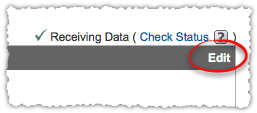
Edit Google Analytics Profile

Now all you have to do is type an underscore at the beginning of your profile name. The example uses a domain entry, but it could just as easily be something like _My Website Name.
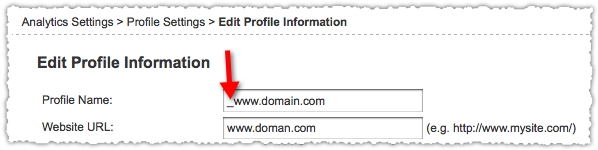
Underscore Your Profile

Then click Save and you’re done. Don’t worry, this will NOT impact the tracking on this profile. No data or history will be lost.

The underscore profile will now be the default profile since it’s first alphabetically. It’s certainly not the only way to do this, but this 1 minute hack can make your daily use of Google Analytics just a bit easier.
How To See Google Analytics Traffic Faster

February 01 2010 // Analytics + SEO // Comments Off on How To See Google Analytics Traffic Faster

Sometimes you want to see your Google Analytics traffic faster. Whether you’re obsessive, impatient, troubleshooting or benchmarking, you might find yourself frustrated with the 3-4 hour time lag, particularly if it’s a site with a decent amount of traffic.

Stop Waiting for Google Analytics Traffic

Here’s a quick and easy tip to see your Google Analytics traffic faster. (Remember, this only works if you’re looking at intraday traffic.)

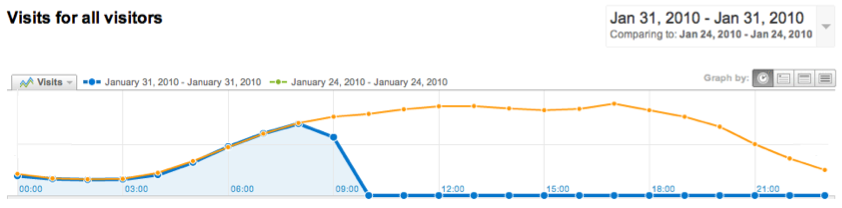
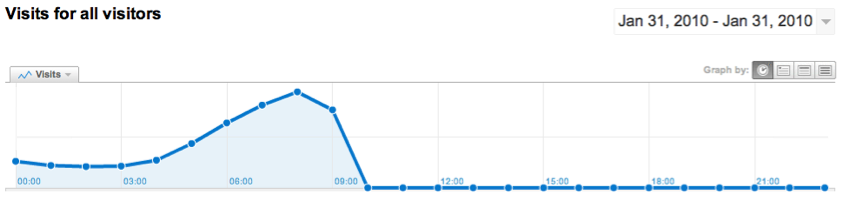
Go to the Visitors > Visitor Trending > Visits report in Google Analytics. Then make sure you’re looking at the graph by hour. The report will look something like this.

Google Analytics Traffic Graph

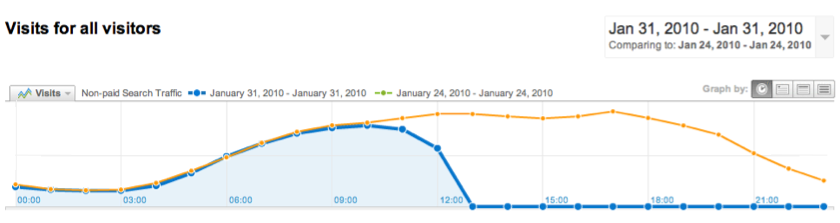
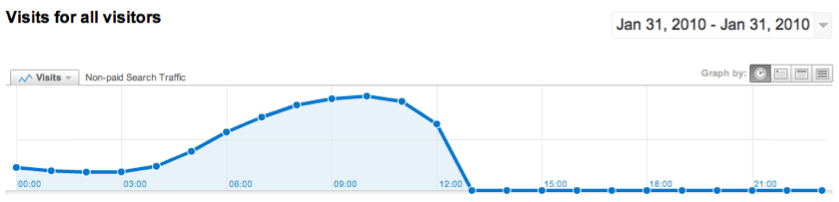
Now, in the far right select the Advanced Segments drop down and choose one of the default segments. My favorite is Non-paid Search Traffic. Then deselect All Visits so only Non-paid Search Traffic is checked. The result? You get a peek at a few more hours of traffic.

Google Analytics Non-Paid Search Graph

You can leave All Visits on to see the difference between the two if you’re really interested. For me, it’s all about looking at the day’s traffic in comparison to the same day last week. Using the same report with All Visits you get something like this.

Google Analytics All Visits Comparison Graph

Look at just Non-paid Search Traffic and you get to see those most recent hours. This is the report if you’re serious about SEO.

Google Analytics Non Paid Search Graph Comparison

You can use any of the default advanced segments and can usually use any custom advanced segment that produces enough traffic. So stop refreshing your dashboard stats again and again without success. Instead, follows these few steps and get ahead of the curve.

Twitter and Google … Analytics

May 08 2009 // Analytics + Social Media + Technology // 2 Comments

Twitter is using Google Analytics

Earlier this month Twitter launched new HTML versions of their Follower and Direct Message emails. Upon clicking through one of these newly designed emails you’ll notice that the links all contain Google Analytics parameters.

Twitter and Google Analytics

For those of you without the best eyesight, the URL contains the normal utm_ parameters. In this case Twitter is using source=follow, medium=email and campaign=twitter20080331162631.

What is twitter20080331162631?

It is not a user id since a Google search for twitter20080330062631 shows results for more than one user. The first part looks like a date, but March 31, 2008 seems like an odd choice for something just released. Any ideas?

Why is Twitter using Google Analytics?

The obvious answer is Twitter wants more accurate or easily accessible metrics. But why select Google Analytics? Sure it’s free but Twitter isn’t hurting for money, are they? Twitter could use any number of other solutions.

Many believe Twitter is a Google competitor and/or acquisition target which makes using Google Analytics more intriguing.

Wouldn’t Twitter be just a little bit paranoid that Google would peek at the Google Analytics data to gain insight into their business? Sure it’s not supposed to happen but … why take the chance?

Or is Twitter using Google Analytics to provide due diligence data to Google for a potential acquisition? Google certainly wouldn’t doubt numbers generated by their own product. Is this part of the rumored negotiations taking place between Google and Twitter?

Google Killer or Google Accomplice

Outside of the conspiracy theories, Twitter’s usage of Google Analytics further cements them as the leader in the analytics space, surpassing competitors such as Omniture and Coremetrics.

PowerPoint decks at conferences are peppered with Google Analytics graphs and screen captures. In a difficult economic environment it becomes more and more difficult to rationalize using a paid product when a free product has a similar feature set.

Twitter isn’t a Google killer. Instead it’s helping Google to kill web analytics providers.